Screen Studio Review for Polished Mac Screen Recordings
This review contains affiliate links. We may receive a commission if you purchase through them. How we earn · Editorial policy

Screen Studio is one of the best focused screen recorders for Mac users who want polished product demos without spending hours in a full video editor. Its automatic zoom, smooth cursor movement, clean backgrounds and simple timeline do most of the visual work.
It is not the best choice for Windows users, advanced multi-track editing or long training projects that need detailed production control. Screen Studio wins through speed and taste, not by offering every editing tool.
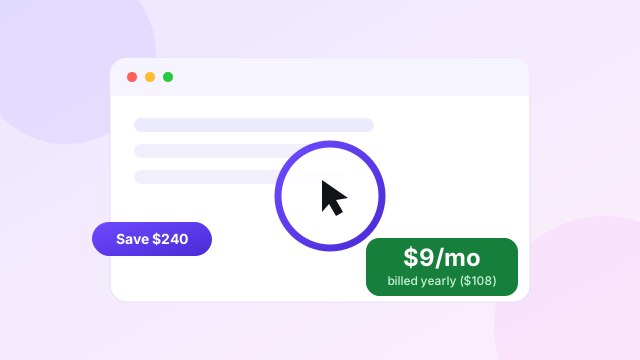
Choose Screen Studio if you use a Mac and regularly create SaaS demos, tutorials, launch clips or short course videos. The annual plan costs $108, equal to $9 per month. Monthly billing costs $29.
Check Screen Studio through our affiliate linkScreen Studio review summary #
| Area | Editorial assessment |
|---|---|
| Ease of use | Excellent for a focused recording workflow |
| Automatic zoom | One of its strongest features |
| Cursor effects | Smooth, clear and easy to adjust |
| Recording | Screen, webcam, microphone, system audio and iOS devices |
| Editing | Fast for cuts, zooms and speed changes; limited for complex work |
| Sharing | Useful shareable links with privacy and comments |
| Export | Up to 4K 60fps, plus optimised GIFs |
| Platform support | Mac only, with Ventura 13.1+ recommended |
| Value | Strong at $108 yearly; expensive at $29 every month |
What Screen Studio does differently #
A normal screen recorder gives you raw footage. You then open an editor, add zoom keyframes, improve the cursor, build a background and export the right size. Screen Studio tries to combine those steps.
When you record, the app tracks actions and can add zooms around them. It smooths the cursor path, increases its size and hides it when it is not useful. The recording sits inside a styled frame with background, spacing, rounded corners and shadow.
This is why a basic recording can look like it went through a designer. The app applies a consistent visual opinion instead of giving you a blank timeline.
Automatic and manual zooms #
Automatic zoom is the feature most people associate with Screen Studio. It draws attention to clicks and important parts of the screen. This is useful for product demos because interface text often becomes too small once a desktop recording is placed inside a video frame.
The zooms are editable. You can drag them on the timeline, change their position or add a manual zoom. Screen Studio handles the movement between frames. When exporting vertically for social media, it adjusts the zooms to fit the narrower view.
The system works best when your recording has a clear path. Wild cursor movement and fast switching between windows can still produce a busy video. A short plan before recording helps the automation make better choices.
Cursor smoothing and click effects #
Cursor smoothing may be the feature viewers notice without naming. A real mouse often jumps, shakes and doubles back. Screen Studio turns that path into a softer motion.
After recording, you can change the cursor size, use high-resolution system cursor styles and add click effects or sounds. The app can hide a static cursor and return it towards its starting point at the end of a loop.
These controls are useful for product clips on X, LinkedIn and landing pages. They make the action easy to follow on a phone without adding arrows to every frame.
Recording quality and sources #
Screen Studio can record the Mac screen, a selected window or area, webcam, microphone and system audio. You can capture system sound from all apps or choose a specific app. That helps when notifications or unrelated audio should stay out of the recording.
The app can record an iPhone or iPad connected by USB. It detects supported device models and lets you add a matching frame. This is a useful advantage for teams showing an iOS app.
Camera recording supports high-quality formats up to 4K, according to the current feature set and changelog. A large camera input is only useful when your source camera and lighting are good. For a small webcam bubble, 1080p is normally enough.
Audio and transcript tools #
Screen Studio can normalise voice volume and remove background noise. Recent changelog updates have focused on microphone selection, stereo input, channel muting, audio scrubbing and enhancement in exported files.
It also generates transcripts for subtitles. The official product page says transcript generation happens on the machine and does not send that data to Screen Studio servers. A 2025 update added Apple Speech Recognition as a transcript option.
This is a useful privacy and speed feature, but generated captions should still be checked. Product names, technical terms and accents can produce errors in any speech recognition system.
Editing experience #
The timeline is built for common screen-video edits:
- cut or trim unwanted parts;
- speed up slow sections;
- adjust zoom ranges;
- change cursor treatment;
- add or change the background;
- crop the screen;
- add masks over private details;
- change camera layouts; and
- add background music.
Version 3 added a command menu, batch export, quick sharing and automatic suggestions to speed up typing. Later updates added pause and resume, sensitive-data masking, highlight masks, private sharing and comments.
This is enough for a product demo, tutorial or update. It is not a full multi-track editor. If you need many B-roll clips, motion graphics, colour grading, layered sound design or complex animations, Camtasia, Final Cut Pro or DaVinci Resolve will give you more control.
Cloud sharing without a browser recorder #
Screen Studio is a native Mac app with a cloud sharing layer. Version 3 introduced shareable links. Later releases added private links, comments and a view counter.
The mix is useful. You get local capture and editing, then a link for clients or team members. It is not as collaboration-centred as Loom, but it is more than a simple MP4 export tool.
The changelog lists a 30-minute limit for shareable links. Check the current app if you plan to host longer training sessions. For long course modules, export the video and use a dedicated hosting platform.
Export formats and social video #
Screen Studio exports video up to 4K at 60fps and can create optimised GIFs. Built-in presets select suitable settings for the web, social platforms or further editing.
You can switch between horizontal and vertical layouts, and the app adjusts its animations. This matters for a founder who records a wide product demo but also needs a narrow version for a social post.
It can copy an exported video to the clipboard for quick pasting. This small feature suits the app's central idea: reduce the gap between recording and sharing.
Screen Studio pricing #
Screen Studio currently lists two subscription choices:
| Plan | Price | Best for |
|---|---|---|
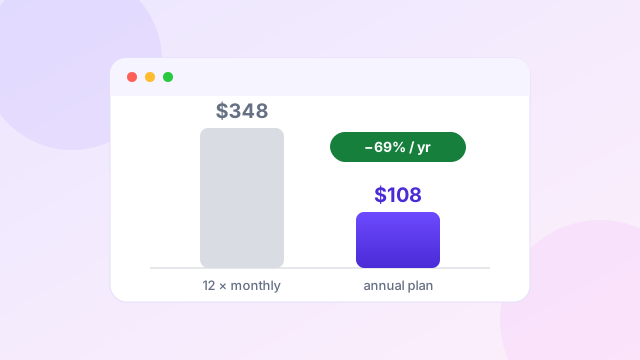
| Monthly | $29 per month | A short project or one-off launch |
| Annual | $108 per year | Regular demos and tutorials |
Prices checked 20 July 2026.
The annual plan is shown as $9 per month when billed yearly. Compared with paying $29 for 12 months, the annual option costs $240 less.
Eligible education users can request an official 40% discount. Read our Screen Studio coupon guide and Screen Studio pricing breakdown for details, or the education discount guide if you qualify.
Who Screen Studio is best for #
SaaS founders
It is well suited to launch clips, feature updates, onboarding videos and landing-page demos. Automatic zoom keeps a detailed interface readable.
Designers and developers
Clean cursor movement and adjustable backgrounds make prototype and build updates look more deliberate. iOS recording is useful for mobile apps.
Course and tutorial creators
Screen, webcam, microphone, system audio, subtitles and keyboard shortcut display cover the common needs of software lessons. Very long or complex courses may need a larger editor. Our product demo guide shows the workflow in practice.
Support and success teams
Quick recording, masking and shareable links fit bug explanations and help videos. Loom may be better when comments, workspace management and fast browser capture matter more than visual polish.
Who should choose something else #
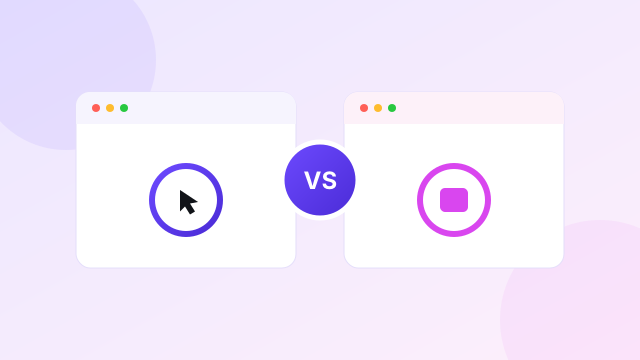
Screen Studio is not available as a full Windows product. FocuSee is the closest broad alternative for automatic zoom on both Windows and Mac. Read our Screen Studio vs FocuSee guide.
Use Loom for quick team messages and viewer collaboration. Use Tella for clip-based recording, team workspaces and browser access. Use OBS Studio when cost, streaming or detailed recording control matter. Use Camtasia when you need a larger editing suite.
Our Screen Studio alternatives guide compares these options by use case.
Screen Studio pros and cons #
Pros
- Automatic zoom saves manual keyframe work.
- Cursor smoothing makes demos easier to watch.
- The interface is simpler than a full video editor.
- It records screen, webcam, system audio and iOS devices.
- Local transcript generation is a useful privacy choice.
- Exports reach 4K at 60fps.
- Cloud links, comments and private sharing support review work.
- The $108 annual plan is competitive for regular users.
Cons
- It is designed for Mac, not Windows.
- The $29 monthly price is high for occasional recording.
- Editing tools are limited compared with Camtasia or Final Cut Pro.
- Automated zoom still needs review on a busy recording.
- Shareable links are not a complete video hosting or learning platform.
Is Screen Studio worth it? #
Yes, for a Mac user who makes polished screen videos more than a few times each month. The annual plan is where the value sits. At $108 per year, the tool only needs to replace a small amount of manual editing time to pay for itself.
It is harder to recommend at $29 per month for basic screen capture. macOS already has recording tools, and OBS Studio is free. You pay Screen Studio for automatic visual treatment and a short path to a finished demo.
The decision is simple: if you care about how the recording looks but do not want to edit every move, Screen Studio makes sense.
Try the current Screen Studio offer
Check annual billing at $108 and confirm the final checkout price.
Visit Screen Studio through our affiliate linkAffiliate link. We may earn a commission at no extra cost to you.
Watch: Screen Studio reviewed on camera #
If you prefer to see the app in motion before deciding, this independent video review walks through the recording workflow, the automatic zoom behaviour and the export options, and it discusses the current pricing structure including the subscription and lifetime options.
Video summary: The reviewer records a demo, then shows how Screen Studio applies automatic zooms and cursor smoothing without manual keyframes, edits the result on the timeline and exports it. Pricing is covered near the end, including subscription billing and the lifetime licence. His conclusions match ours: the app earns its price through saved editing time, and it is Mac-only. (Independent review, published January 2025 — prices mentioned in older videos may differ from the current checkout.)
Frequently asked questions #
Is Screen Studio only for Mac?
Yes. Screen Studio is designed for macOS, with Ventura 13.1 or later recommended on the official page.
Does Screen Studio add zoom automatically?
Yes. It can add zooms around actions, and you can move, remove or add zoom ranges on the timeline.
Can Screen Studio record system audio?
Yes. It can capture sound from all apps or selected apps, alongside microphone and webcam recording.
Does Screen Studio have cloud sharing?
Yes. It can create shareable links. Recent versions have added private links, comments and view counts.
How much is Screen Studio?
The public plans are currently $29 monthly or $108 yearly. The yearly cost is presented as $9 per month when billed annually.
Is FocuSee better than Screen Studio?
FocuSee is better for Windows support and broader AI tools. Screen Studio is the cleaner choice for a focused, Mac-native product-demo workflow.
Related guides
 Offers
Screen Studio Coupon and Current Annual Plan Savings
The verified savings and current coupon-code status.
Offers
Screen Studio Coupon and Current Annual Plan Savings
The verified savings and current coupon-code status.
 Pricing
Screen Studio Pricing Explained Before Choosing Your Plan
Monthly vs annual costs and the break-even point.
Pricing
Screen Studio Pricing Explained Before Choosing Your Plan
Monthly vs annual costs and the break-even point.
 Comparison
Best Screen Studio Alternatives for Mac and Windows
FocuSee, Tella, Loom, Camtasia and OBS Studio compared.
Comparison
Best Screen Studio Alternatives for Mac and Windows
FocuSee, Tella, Loom, Camtasia and OBS Studio compared.
 Comparison
Screen Studio vs FocuSee for Automatic Product Videos
The closest cross-platform rival, feature by feature.
Comparison
Screen Studio vs FocuSee for Automatic Product Videos
The closest cross-platform rival, feature by feature.
 Tutorial
How to Make Product Demos With Screen Studio
Plan, record, edit and export a clear product demo.
Tutorial
How to Make Product Demos With Screen Studio
Plan, record, edit and export a clear product demo.
Sources and review method
This editorial review is based on the official Screen Studio product page, official changelog and current public pricing checked on 20 July 2026. We did not claim a timed rendering benchmark or hands-on test that we did not perform. Affiliate links may earn us a commission without changing the price you pay. Read our editorial policy.